Press

Integrated online agenda

Log in to the platform with your registration credentials and click on ‘AGENDA’ from the side menu to access the section.
When logging in, the display is in weeks but The views are available and can be modified upon selection:
→ day
→ week
→ month
Enter a new appointment

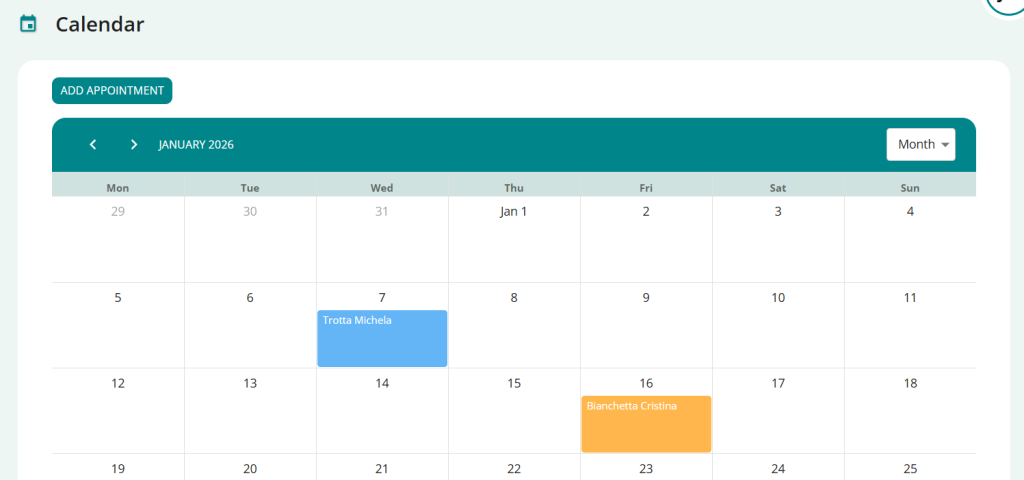
To insert a new appointment, depending on the display setting you have selected, you can proceed in two ways:

  • Click the “ADD APPOINTMENT” button
  • click on the day, or even on the time in the calendar.

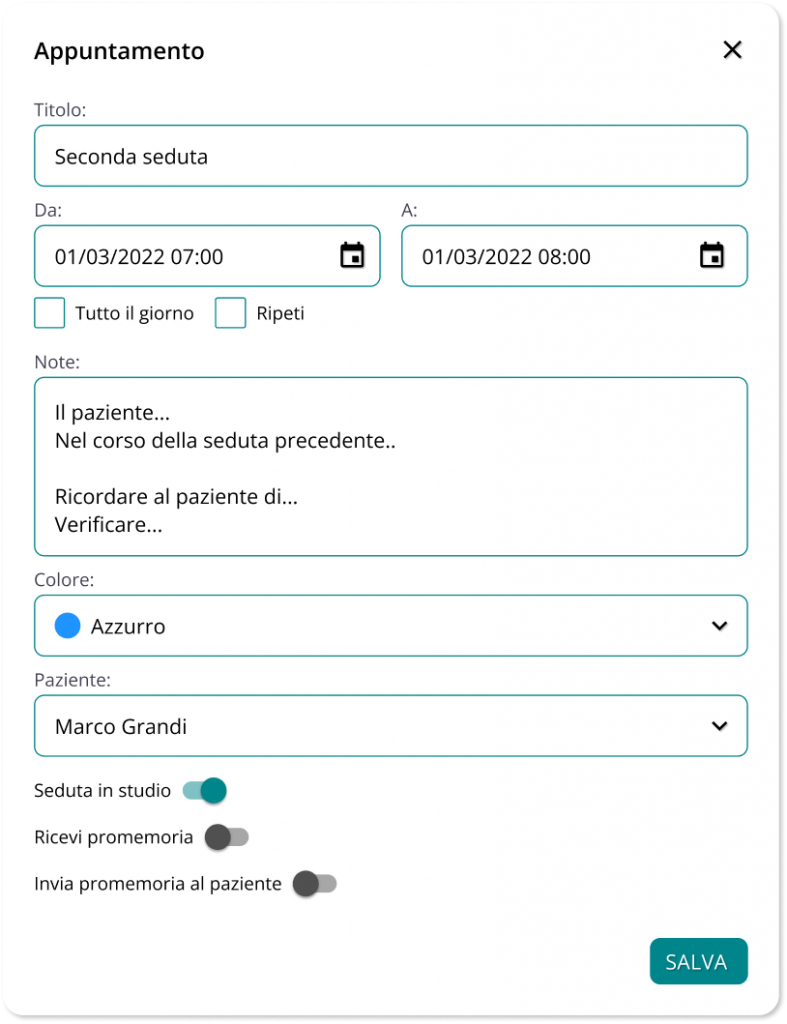
In both cases, you will see a popup that will allow you to enter all the data: 

agenda_online
  • the title for the session (mandatory if you do not enter a patient)
  • the day and time of the appointment
  • possibly, the repetition
  • your notes at the session
  • the color you want to assign to the appointment
  • the patient (required if you do not enter a title)
  • select the “in studio” detail
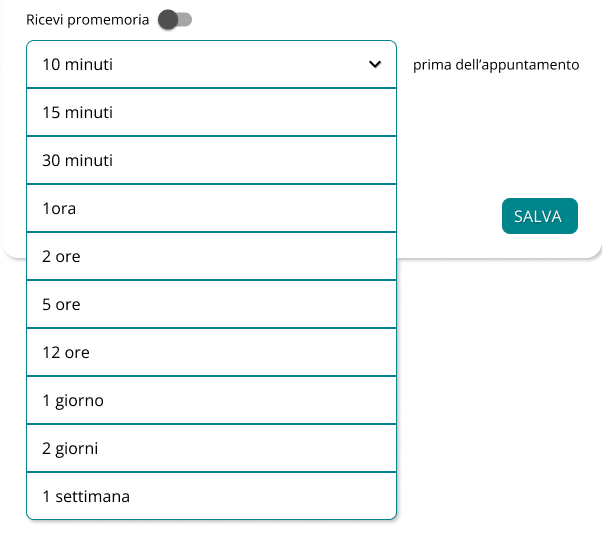
  • select the option “receive a memorandum”
  • select the “send reminder to patient” option

Once you’re done, click SAVE and your appointment is saved in your calendar.

Activate an appointment reminder

To activate the reminder for you, as a therapist:

  • Click the “GET REMINDER” button

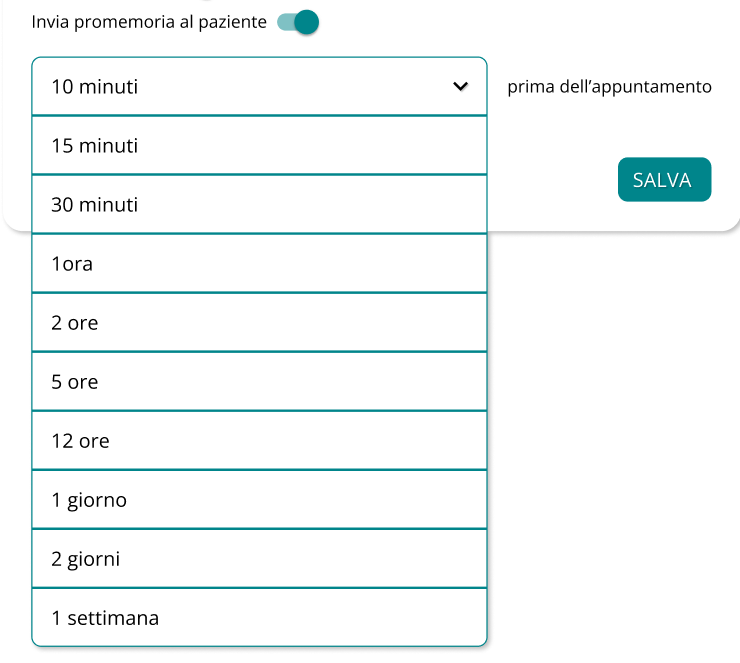
For your reminder, you can select from the available options the times when you want to receive the reminder.

You will receive the appointment reminders, depending on your choice, in the ways provided, namely:

  • via SMS
  • via email
agenda_online

Forward the reminder to the patient

To activate the patient reminder:

  • Click the “SEND REMINDER TO PATIENT” button

Even for the reminder for your patient, you can select from the available options the times when you want them to receive reminders.

The selected patient will receive the appointment reminders, depending on your choice, in the ways provided, namely:

  • via SMS
  • via email
agenda_online

View and edit appointment

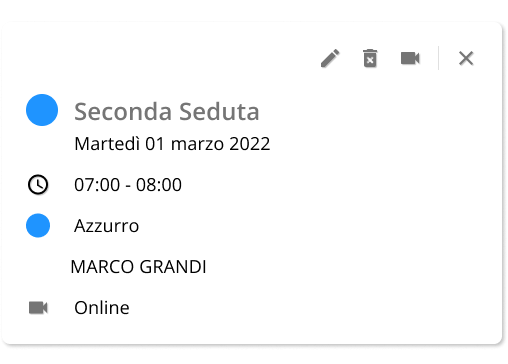
Click on the appointment to view a summary pop-up with key information.

agenda_online

Here you can:

  • click on theand immediately start the online session with the patient
  • click on the  to access the details and change the appointment
  • click on the For delete the appointment
  • click on the  close the popup and return to your calendar. 
You can also move appointments directly on the calendar by dragging and dropping as needed.

Summary