
In the section DOCUMENTS view all your PERSONAL DOCUMENTS in PsyCare.

On the page:
- click on
 ADD DOCUMENT to add a new document
 - click on
 DIGITAL SIGNATURE to digitally sign a document[Supporto: Digital Signature]#atfp_close_translate_span#
 - click on
 SEARCH to search for a document among those already uploaded
 - click on
 REFRESH to refresh the page
 - select
 →
→ on the documents tab to select multiple downloads; you will see
- click on
 to download all the selected documents in .zip format
 - click on the
 to deselect
- click on
For each document you can:
- click on
 SHARE WITH A PATIENT and share the document with one or more patients
 - click on
 DOWNLOAD and download the selected document
 - click on
 DELETE and permanently delete the document from the documents section in PsyCare
 - click on
 SELECT to select multiple documents for download in .zip format
Add a document
- Select
 ADD DOCUMENT at the top right of the page: you will see the popup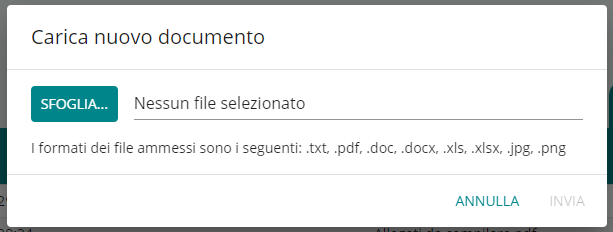
- selectBROWSE and choose the document to upload
- selectCANCEL to cancel the operation
- selectSEND to upload the selected document
- view the document in the page list
SUGGESTION
Don't see the document you're looking for? Try refreshing the page >
Share a document with one or more patients
- Locate the document you want to share in the list or search for it.
- SelectSHARE in its row and access the popup for sharing that document.
- Find the patient(s) you want to share the document with in the list, or search for them.
- Click on the respectiveSEND of the patient(s)
- The patient receives the document in his or her documents section in PsyCare.

ATTENTION: If the patient has not completed registration, or has not uploaded his or her identification document, it is not possible to share a document with him or her.
You canCOMPLETE THE REGISTRATION you too for him....