
When both you and your therapist are online, the virtual whiteboard icon will be enabled on the bottom bar of your device’s screen for both of you.  and you will be able to interact simultaneously on the same whiteboard in real time.
Fai click sullicona per
- open a new virtual whiteboard
- load latest virtual whiteboard
The virtual whiteboard is shared in real time with your therapist and allows you to take advantage of the features described below:
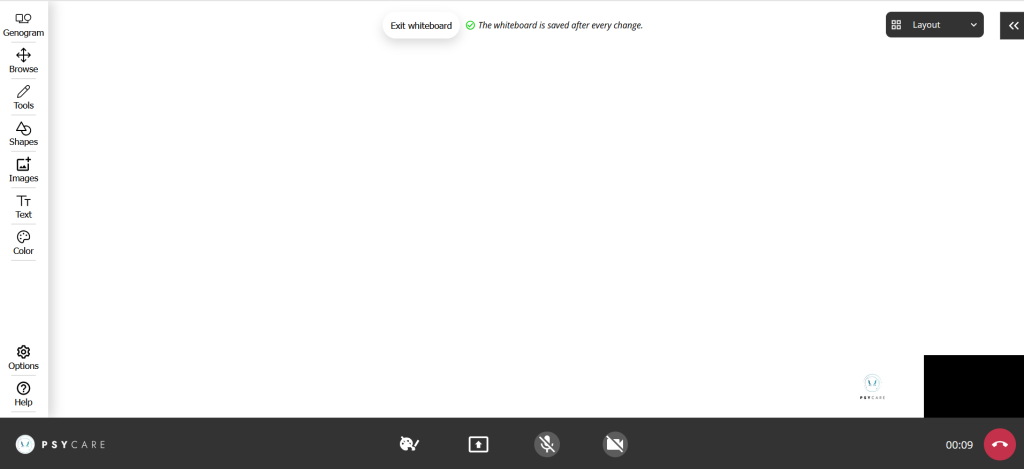
On the left side of the virtual whiteboard:
- click on
 <genogram> to insert a genogram
 - click on
 <browse> to select an element or move in the virtual sheet in four directions (up, down, right and left)
 - click on
 <tools> to draw freehand in the color you set or delete a selected element
 - click on
 <shapes> to quickly draw a shape, arrow or line
 - click on
 <images> to insert images from your device directly onto the virtual whiteboard
 - click on
 <text> to write on the virtual blackboard
 - click on
 <color> to set the color for each of the available functions
 - click on
 <options> to cancel, erase, or zoom the whiteboard
 - click on
 <help> to view a quick guide to the whiteboard