
Log in to the platform with your registration credentials.
Access to the Virtual Room
- Select
 that you see on your Home Page and access your VIRTUAL WAITING ROOM directly before entering the Virtual Room.
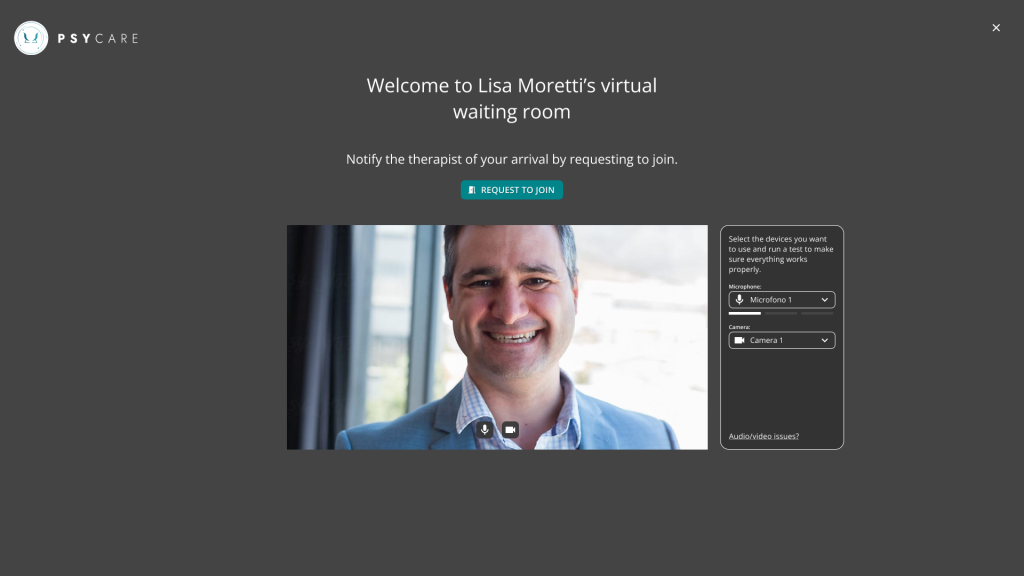
- Click on ‘REQUEST TO JOIN’ to inform the therapist of your arrival and wait:
- when the therapist enters his virtual room, you will be immediately in contact
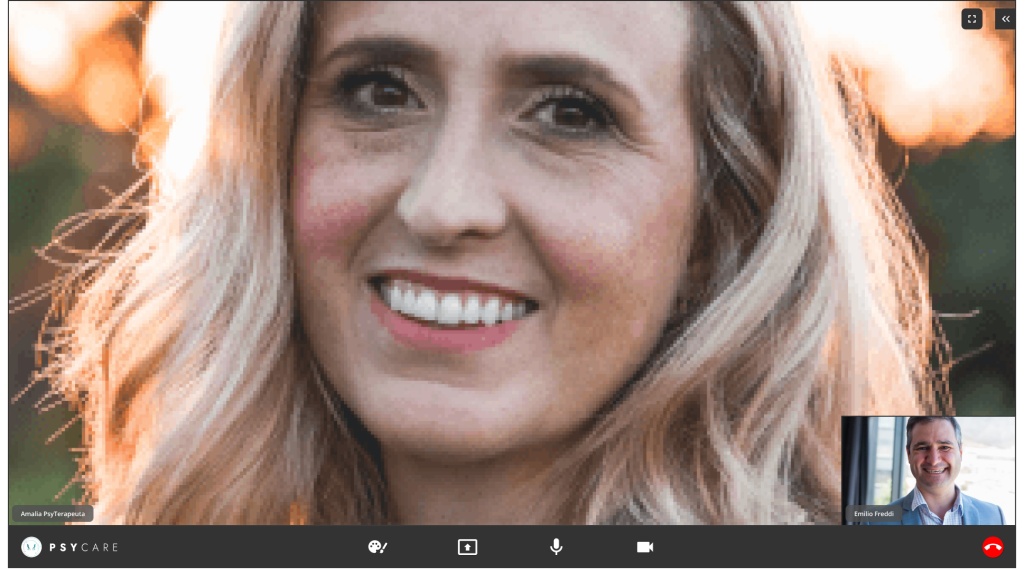
- when the therapist enters his virtual room, you will be immediately in contact
Options in the virtual room
In the VIRTUAL ROOM you have these options:
-
- you can click on the icon
 For
For
- open a new virtual whiteboard
- Load latest whiteboard (this feature will be available soon)
- you can click on
 to share your screen, i.e. a window of your PC, with the therapist
 - you can click on
 to stop sharing
 - you can click on
 /
/  to disable/re-enable your microphone
 - you can click on
 /
/ to disable/re-enable your webcam
 - you can click on
 to close the online session
- you can click on the icon
In your virtual room, fto click on  to access the side menu and change some settings.
Here you will find two main sections, which you can refer to for the respective settings and information.
- Participants, which is displayed upon login and can be consulted by selecting the > icon

- Settings, which can be accessed by selecting the > icon

This section displays information about the participants in the current online session
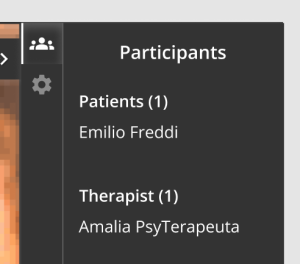
This section displays the camera and microphone settings in use during the session and available on your device.
By selecting the respective icons you can change, if available, by clicking on the respective >  :
:
→ the available view  (“Original” or “Fit to Screen”)
→ the camera in use
→ the microphone  in use in the section