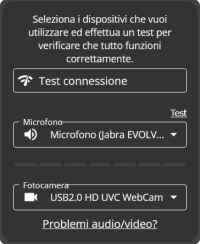
To participate in a video session, you must allow PsyCare to access your camera and microphone. You may have accidentally clicked Block, preventing your therapist from hearing you.. Click here to see how to allow access to your camera and microphone.
PsyCare cannot use the camera or microphone because they are being used by other software..
If you only have a camera or microphone, make sure you close any other software that is using them (e.g.. Skype, Whatsapp Web, Microsoft Teams, FaceTime…) or turn off and on your PC or smartphone again.
If you have multiple cameras or microphones, you can choose which one to use:
1. Inside the waiting room, select the audio or video input you want from the drop-down menus and refresh the page.
2. If you are already in the virtual room, open the side column and, in the tab
Settings, select the devices you want to use from the drop-down menus. Finally, refresh the page.
PsyCare cannot use the audio output because it is being used by other software..
Ask your therapist to make sure you close any other software that is using it (e.g.. Skype, Whatsapp Web, Microsoft Teams, FaceTime…) or ask him to restart his PC or smartphone.
If your therapist is using a PC and has more than one audio output (e.g.. headphones and built-in computer speakers), you may have set the audio output to the one you are not using.
To select the correct audio output:
1. Click on the icon
Speakers in the bottom right bar
2. Then click on the name of the audio output and select the one you want to use.
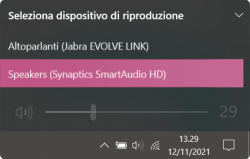
To select the correct audio output:
1. Click on
Apple > System Preferences and then click on Security and Privacy
2. Select the device you want to use from the audio output device list.
Inside the video session, the microphone icon in the bottom bar must not be crossed out but rather look like the image you see below.
If you are using a headset, make sure you have not muted the microphone using the headset button.
Ask them to check that they haven’t muted the sound or turned the volume down too low. If they’re using external speakers, ask them to check that they’re turned on and that the cable is plugged in properly.
Make sure your browser is updated to the latest version. Click here to see how.
If you’re having trouble using PsyCare, try using a different browser. In particular, if you use Safari, we recommend using Chrome.
To take online sessions, you need a microphone. If your PC doesn’t have one, make sure the cable is properly plugged in and the microphone is turned on.
Sometimes cookies can prevent access to certain features.. Click here to see how to delete them.
Make sure psycare.it is not among the sites blocked by your antivirus, firewall, or parental controls.
Close and reopen your browser and log back into PsyCare. Alternatively, restart your device.
WhatsApp: +39 375 703 9065
General Inquiries: info@psycare.it
Support: help@psycare.it

PsyCare for the Environment
We offset CO₂ emissions by planting a tree for every activated subscription: learn more.