
After clicking By clicking the “REGISTRATION” button you will be redirected to the page where you can register by entering the required data in the respective sections to be filled in, as in the image below: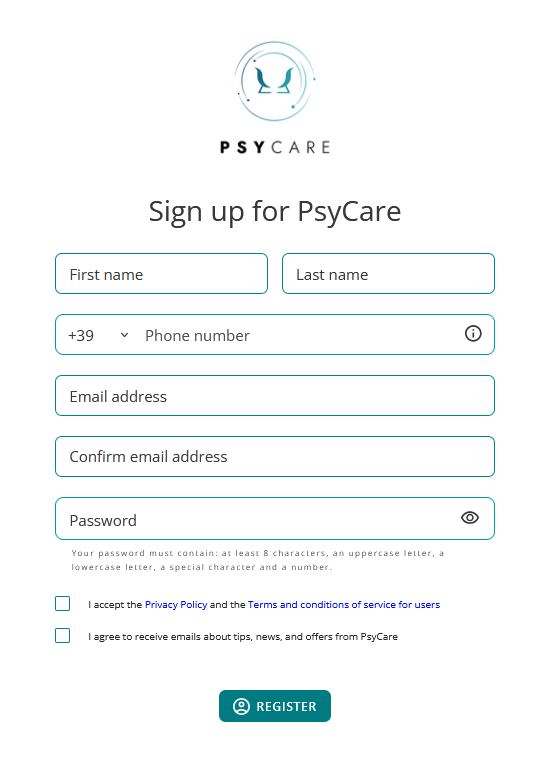
We identify:
- your name (you will find it already pre-filled with the name your therapist entered): check if it is correct, change it if necessary
- your surname (you will find it already pre-filled with the surname entered by your therapist): check if it is correct, change it if necessary
- your mobile number (you will find it already pre-filled)
- your email:
- Enter the email address you wish to use to register with PsyCare
- always check that everything is written correctly
- Confirm Email: In this field, you will need to enter (to confirm it) the same email address you entered in the previous field (see point 4).
PLEASE NOTE: The email address entered in the second field must be the same as the one in the first field; you only need to repeat it to confirm. You'll need it to log in, so make sure it's active and accessible.
- If it’s the same one you received the emails from, write the same one; check that it’s written correctly.
- If you have changed it, write the new email address here too; check that it is written correctly.
- Password: In this field you will need to enter your personal password, which is the one you will use (along with your email address) to access PsyCare. Make sure you choose one that meets the required security criteria, otherwise it will not be accepted.
- Check the box to accept “Privacy Policy” and “Terms and Conditions” (the check mark is required to proceed): we invite you to click on them to access the respective documents and read them.
- Check to accept receiving emails from PsyCare regarding suggestions, news and offers (checking is optional and you can always change this setting).
After completing the section, proceed by clicking on “REGISTER”.
You will be redirected to the login page, from which you can access PsyCare by entering the credentials you used to register:
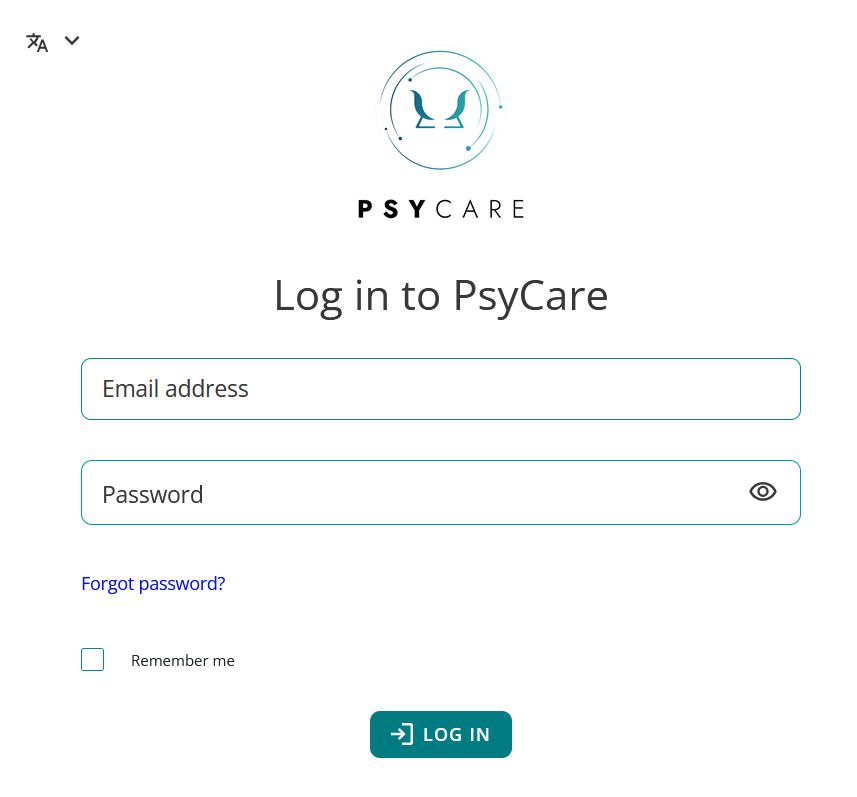
From here, click “LOGIN” and you’ll be taken to your PsyCare profile!
After clicking By clicking the “REGISTRATION” button you will be redirected to the page where you can register by entering the required data in the respective sections to be filled in, as in the image below: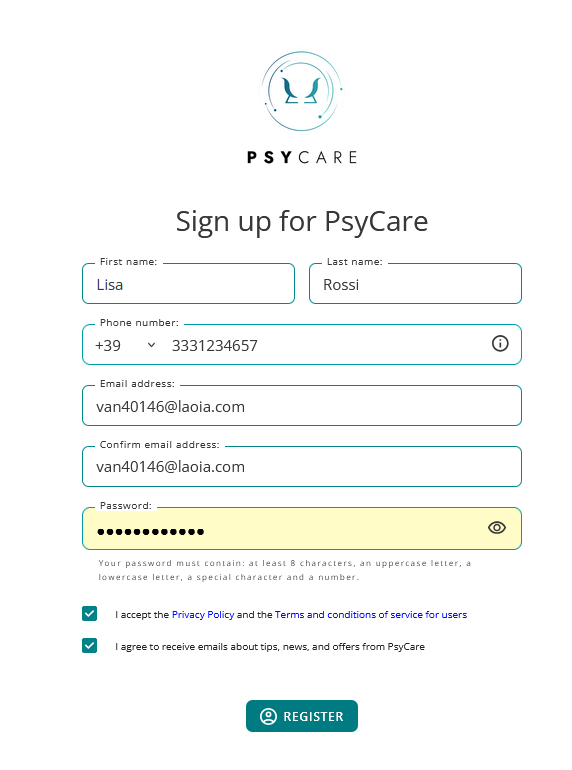
We identify:
- your name (you will find it already pre-filled with the name your therapist entered): check if it is correct, change it if necessary
- your surname (you will find it already pre-filled with the surname entered by your therapist): check if it is correct, change it if necessary
- your mobile number (required)
- your email (you will find it already pre-filled): you will find the email address to which you received the invitation;
- If it’s the same one you want to register with in PsyCare, do nothing
- If, however, you want to use a different email address to register with PsyCare, delete it and enter the new email address; always check that everything is written correctly.
- Confirm Email: In this field, you’ll need to enter (to confirm) the same email address you find or entered in the previous field (see point 4).
PLEASE NOTE: The email address entered in the second field must be the same as the one in the first field; you only need to repeat it to confirm. You'll need it to log in, so make sure it's active and accessible.
- If it’s the same one you received the emails from, write the same one; check that it’s written correctly.
- If you’ve changed it, enter your new email address here too; make sure it’s spelled correctly.
- Password: In this field, enter your personal password, which you’ll use (along with your email address) to access PsyCare. Make sure you choose a password that meets the required security criteria, otherwise it won’t be accepted.
- Check the box to accept “Privacy” and “Terms and Conditions” (this is required to proceed): please click on them to access and view the respective documents;
- Check to accept receiving emails from PsyCare regarding suggestions, news and offers (checking is optional and you can always change this setting).
You will be redirected to the login page, from which you can access PsyCare by entering the credentials you used to register:
From here, click “LOGIN” and you’ll be taken to your PsyCare profile!