
Log in to the platform with your credentials. You’ll see the HOME page and a logo with your initials in the top right corner:
- Click on the logo with your initials: you will see the options
- Personal profile
- Support
- Regulations
- Exit
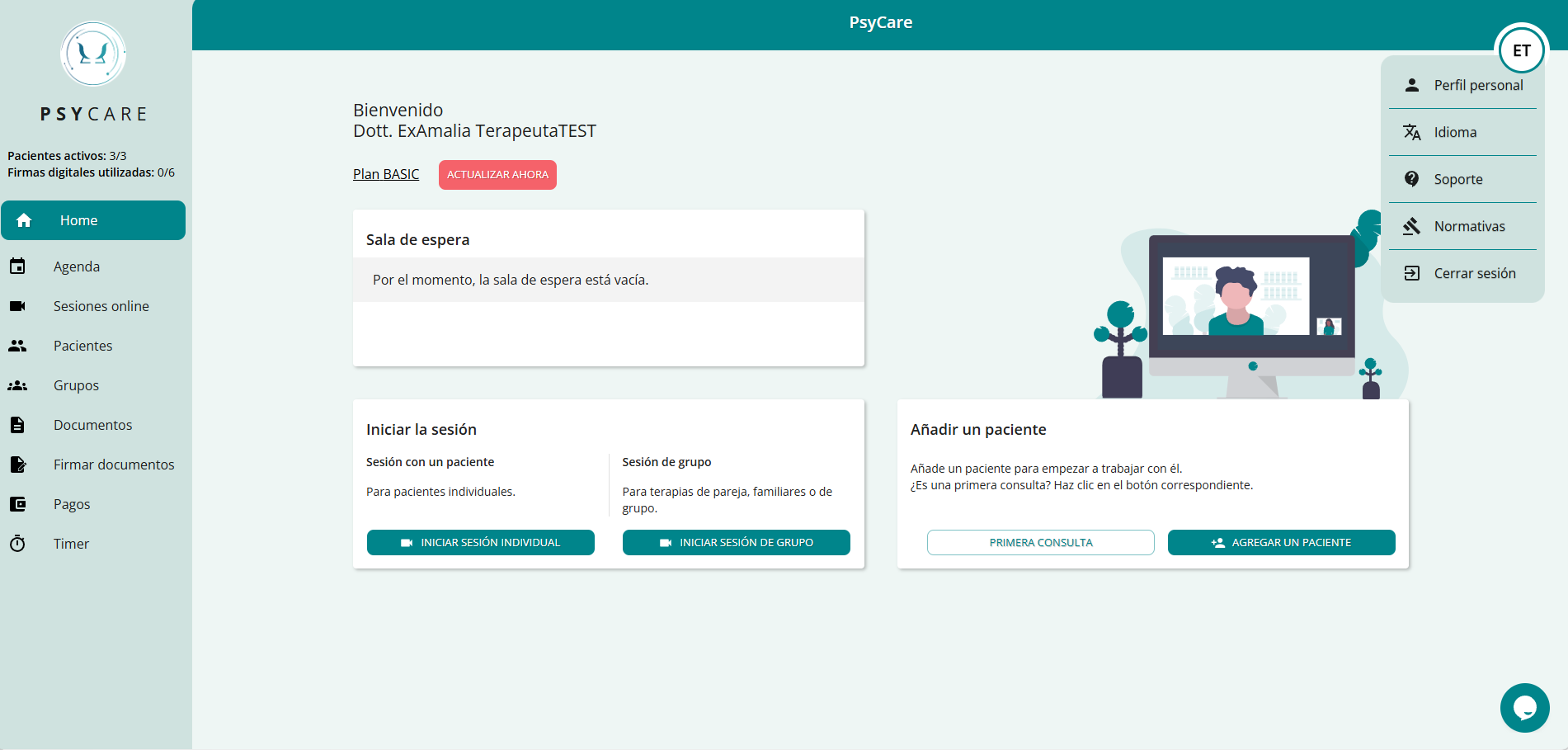
- click on
 and access your profile section: you will immediately see your personal data sheet
- You can immediately view your personal data sheet
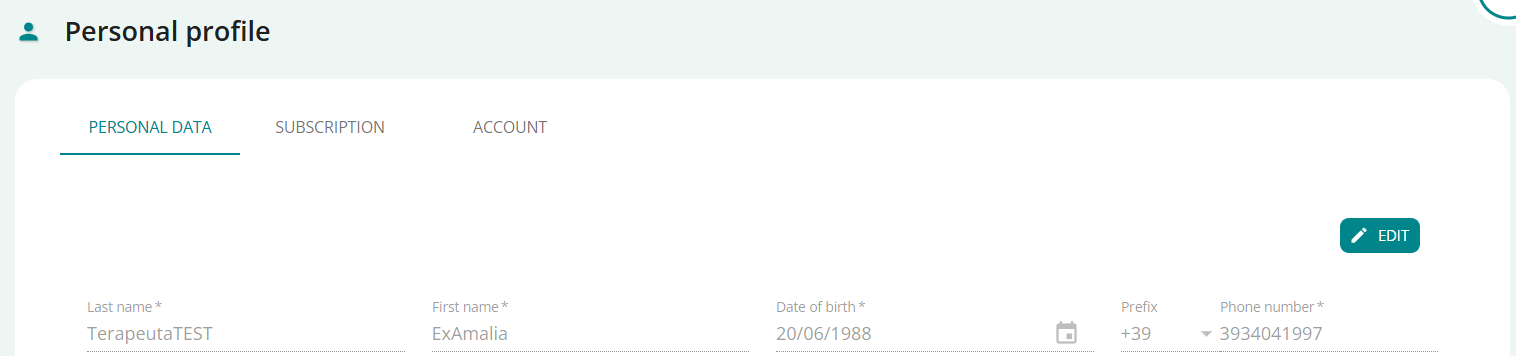
- click on the icon
 to enable data editing
- Edit each field as needed; remember that all fields are mandatory.
- decide whether to hide your tax domicile from your patients by checking the section

- click on
 to cancel the change and close the profile card without saving
 - click on
 to save your changes and update your profile page
Click on PERSONAL PROFILE and on the page select the SUBSCRIPTION section
- view the reference card with the details of the plan currently active for you (in this example the “Basic” plan)
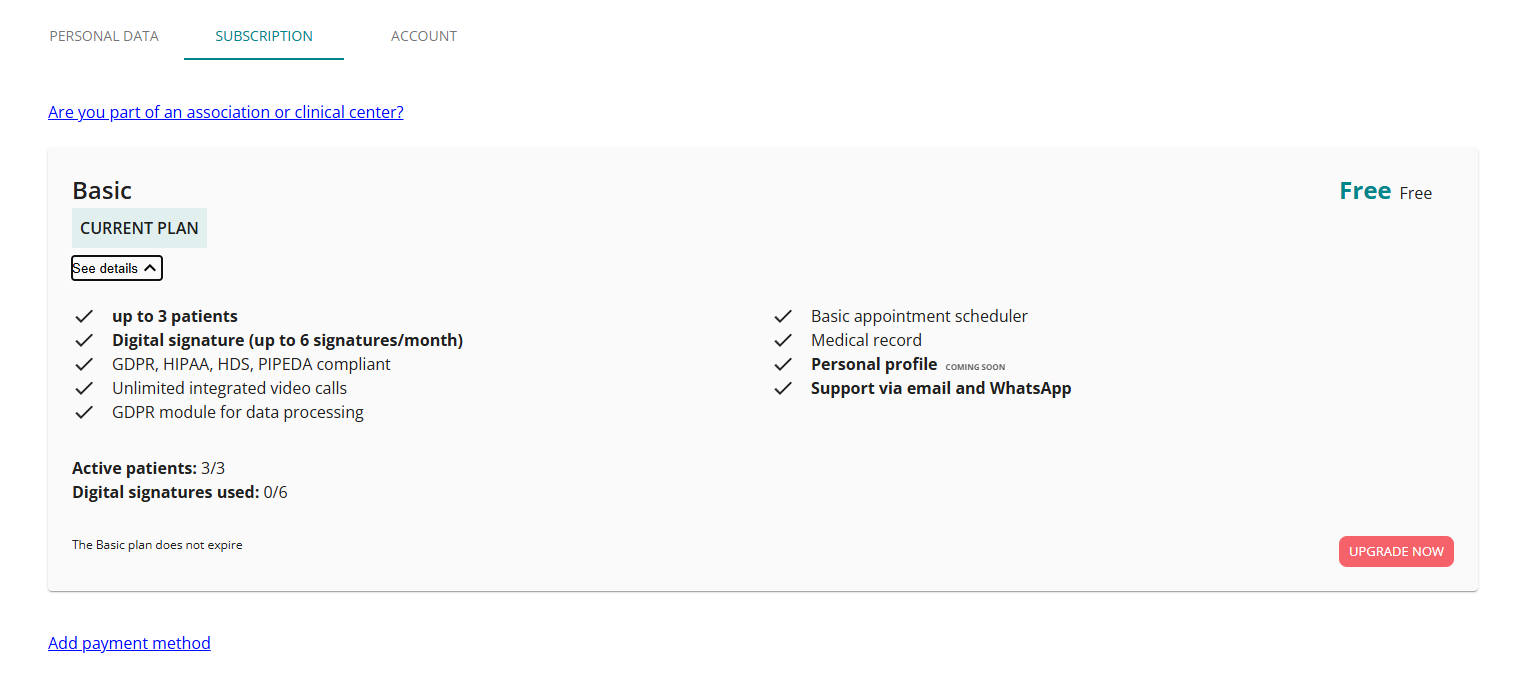
- if you are part of an association or clinical center and you have received a registration code, you must enter it in this section (if you did not do so during registration)

You will find more information here ⇒- If you entered the association code for a clinical center during registration, you will find the option here.JOIN SUBSCRIPTION; by selecting it you can confirm it and permanently associate yourself:
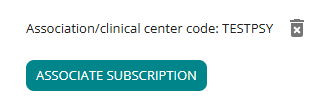
REMEMBER: YOU CANNOT CANCEL THIS OPERATION
- If you entered the association code for a clinical center during registration, you will find the option here.JOIN SUBSCRIPTION; by selecting it you can confirm it and permanently associate yourself:
- selectUPGRADE, you will be redirected to the available plans page where you can decide which plan to subscribe to.
- you can choose to start with a trial period or immediately subscribe to a different plan;
- You just need to proceed and complete the upgrade process by following the instructions provided during the process.
Click on PERSONAL PROFILE and on the page select the ACCOUNT CREDENTIALS section
- view the reference sheet for your credentials
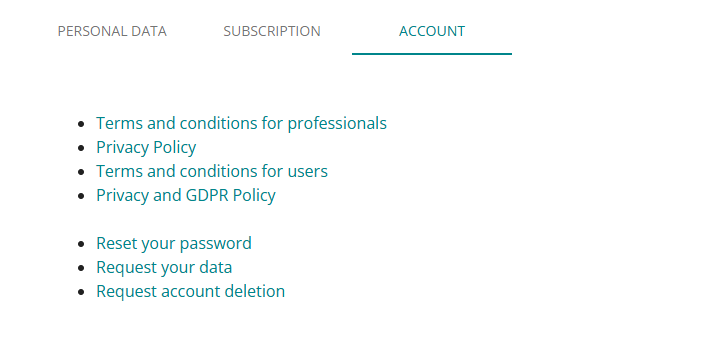
- selectRESET YOUR PASSWORD, if you need to change your password
- You will be sent an email containing a link through which you can reset your password.
- selectREQUEST YOUR DATAif you need to request your data
- You will be put in contact with the specific support team for this operation.
- selectREQUEST ACCOUNT CANCELLATION, if you need to close your account
- You will be put in contact with the specific support team for this operation.
- Click any menu item to change sections and exit your Personal Profile.
Click on SUPPORT and you will see the online support page; here you can
- find the information you need
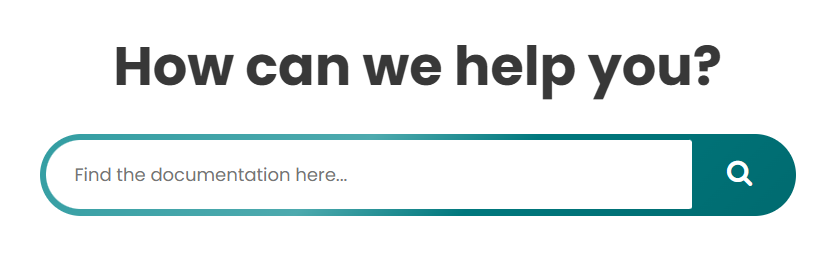
- Select the section you are interested in and access detailed support for your area
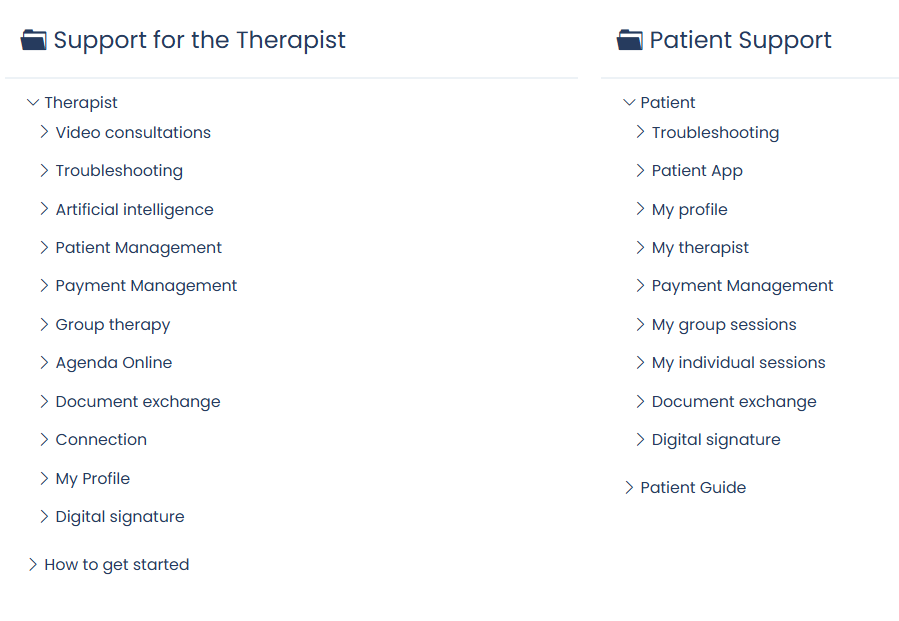
- This section can help you when you log in for the first time

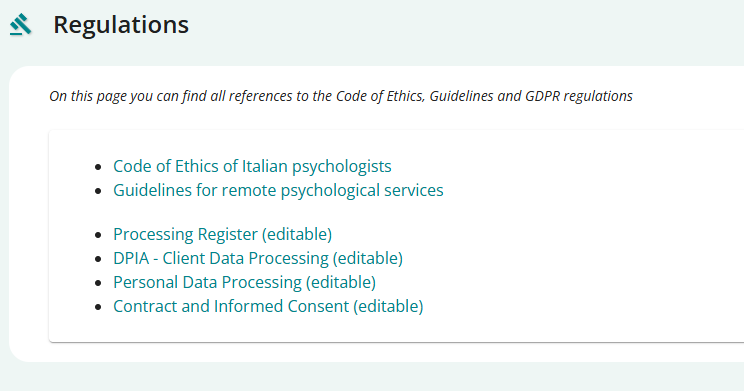
Click on REGULATIONS and you’ll see the online page dedicated to industry regulations, respected and shared by PsyCare; from here you can:
- view what is reported in theCode of Ethics of Italian Psychologists
- view theGuidelines for remote psychological services
- Download the templates relating to: in editable format
- Treatment Register
- DPIA – Processing of Customer Records
- Processing of Personal Data
- Contract and Informed Consent
Click on the logo with your initials at the top right of the page: you will see the options
-
- Personal profile
- Support
- Regulations
- You go out
- Click on
 to exit the PsyCare platform