
Integrated payment management in PsyCare requires an initial ENABLING step, as detailed in the section you view on the platform: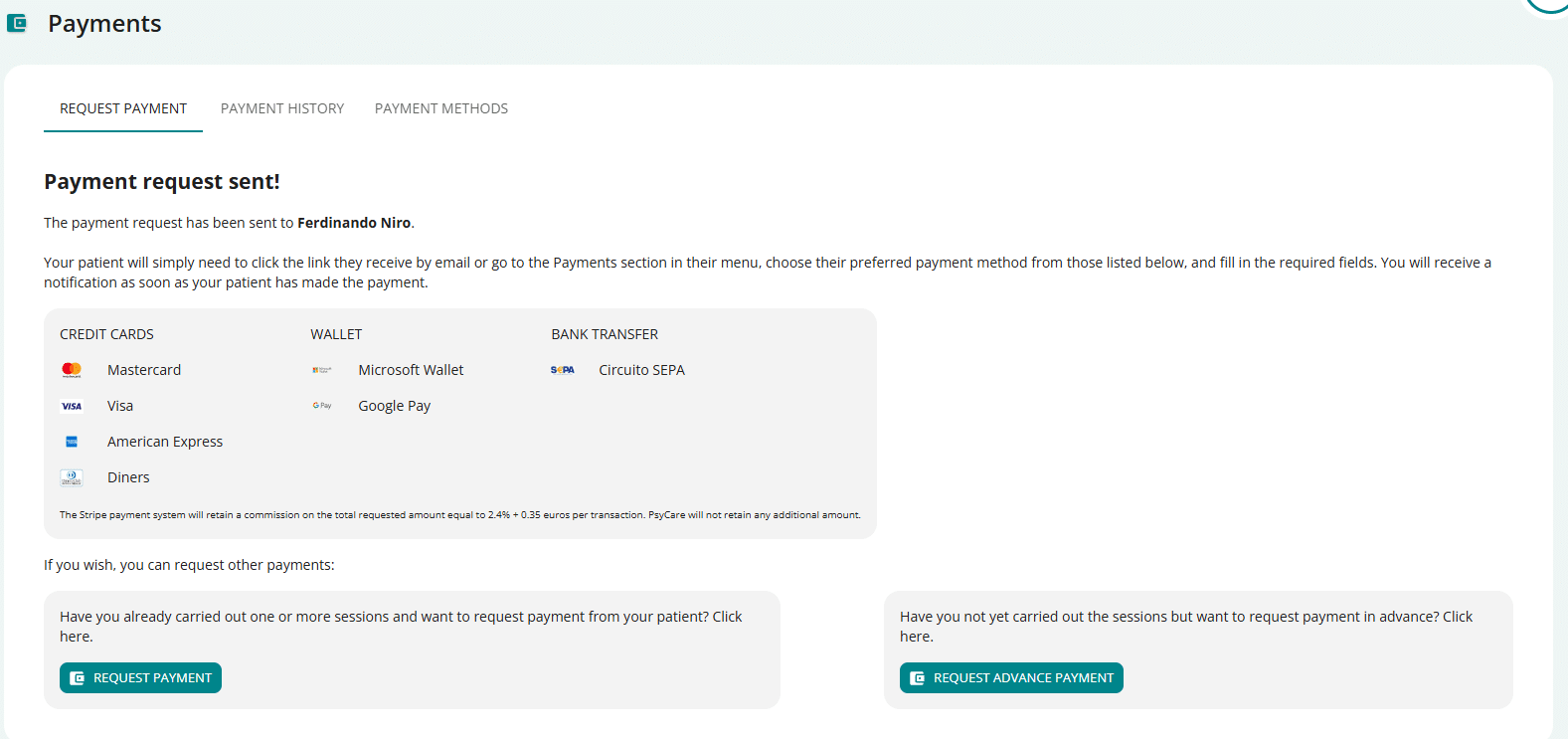
- Click on “ENABLE ONLINE PAYMENTS” and follow the instructions to enable online payments in PsyCare
- you will then see the page dedicated to the PAYMENTS section, enabled for the functionality:
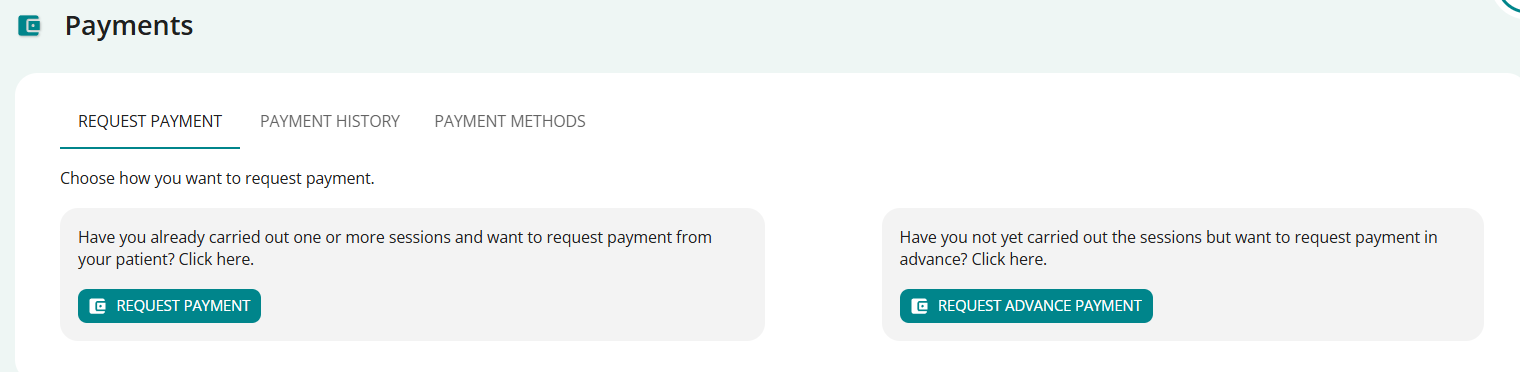
- proceed according to your needs by selecting from the alternatives:[Supporto: COME RICHIEDERE UN COMPENSO]
- Request Compensation
- Request Advance Compensation
ATTENTION: the status of the authorizations is always notified, if not active.
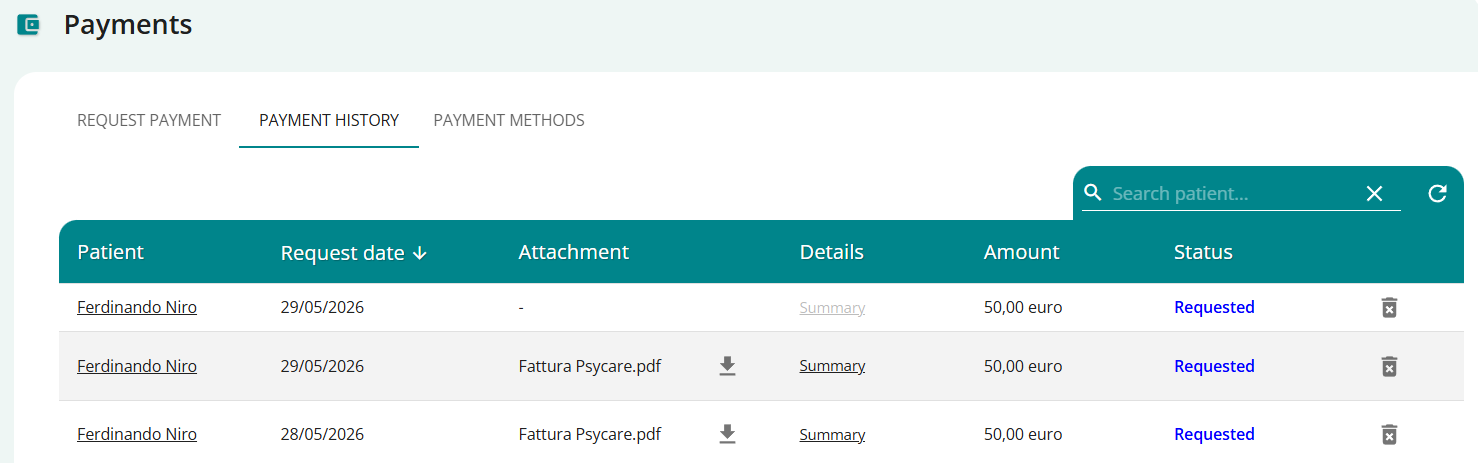
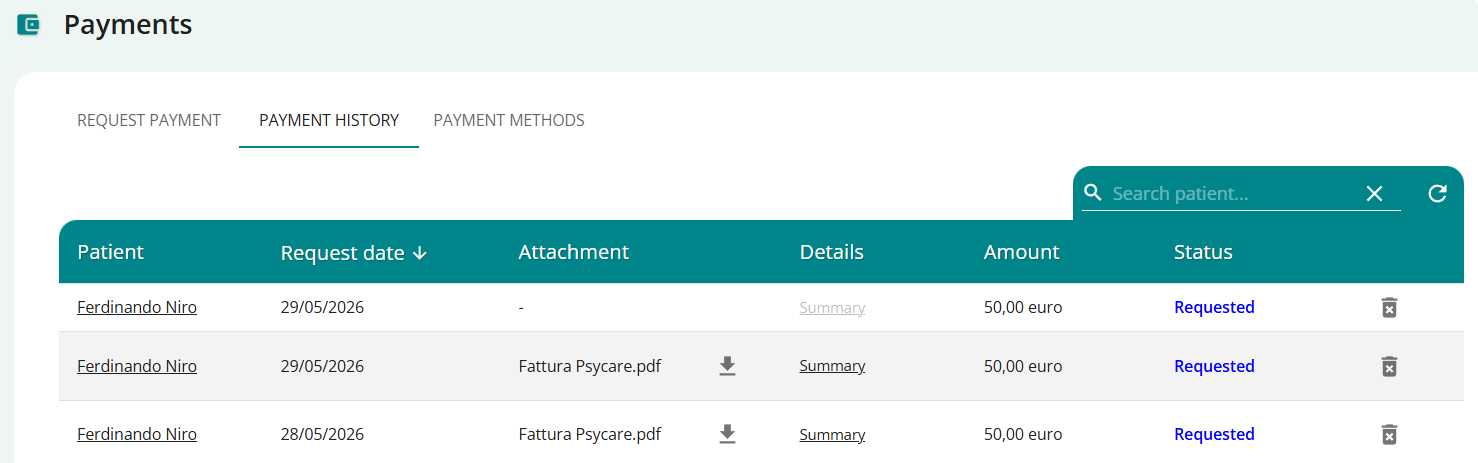
This section allows you to have a constantly updated view of the payments you’ve requested, with a breakdown showing their status:
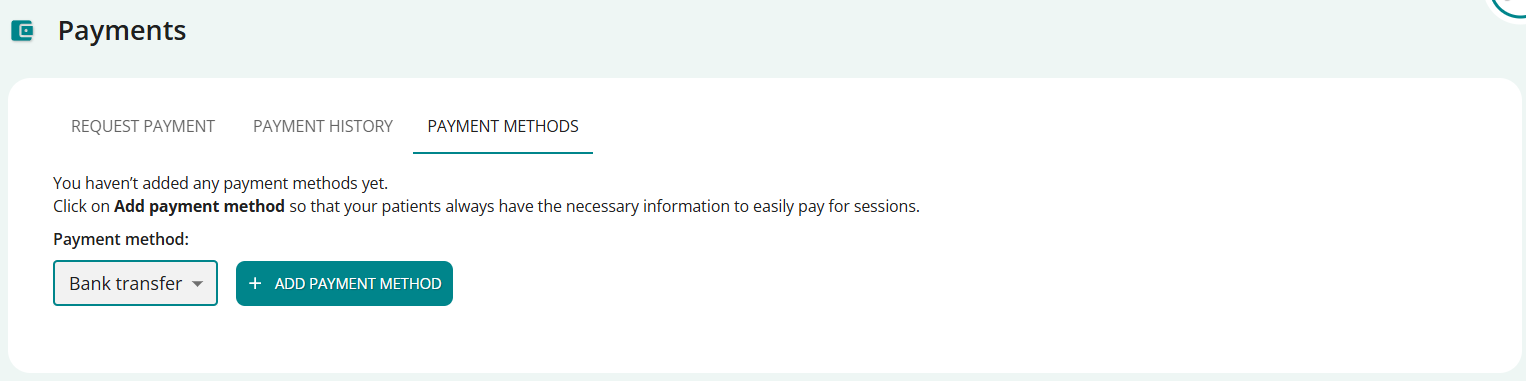
This section allows you to add one or more references for payment management:
-
- At the moment, only bank transfer is available, but other methods will be added soon.
Access the section by clicking on PAYMENTS from the side menu; At the moment only bank transfer is available, but other methods will be added soon. On the page:
- Click on ADD PAYMENT METHOD
- view the new section

- enter the data relating to each of the respective fields
- Current account holder (mandatory data)
- IBAN code (mandatory data)
- BIC code (optional)
- Click SAVE to confirm and save the entered data
- Click CANCEL to cancel the operation
- click on
 /
/  to collapse/expand the payment detail section
- view the new section
REMEMBER: the payment method details entered will be displayed to your patient in the payment methods section of your profile.
The payment methods entered are all editable:
- Click EDIT to enable editing of the data you are viewing
- edit data
- Click SAVE to confirm the change
- Click CANCEL to cancel the change
- Click >< to collapse/expand the section
All payment methods entered can be deleted
- Click DELETE to delete the selected payment method
- a popup will ask you for confirmation
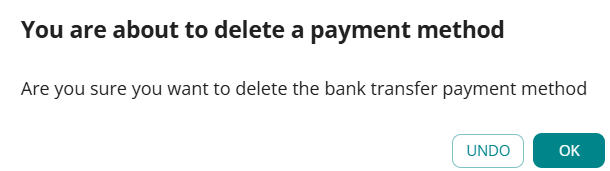
- click OK to confirm
- Click CANCEL to cancel the deletion
- a popup will ask you for confirmation
Regarding PAYMENT METHODS your patient (after logging into PsyCare with your credentials) In the My Therapist section, you will also see the payment methods that the therapist has entered on the platform (in addition to the therapist’s general information and contact details).
You can see an example of what your patient is seeing in the image below.. 
Your patient will see (after logging in to PsyCare with his credentials) in the Payments section, a list of the payments requested from him with some detailed information.
The patient has the option to make payment in the following ways:
- directly from the platform (by clicking on PAY NOW which appears in the payments to be made section)
- directly from the SMS you receive (by clicking on the link you receive in the message)
- directly from the email you receive (by clicking on GO TO PAYMENT that appears in the email)
If you want to see this or other features of the platform in detail patient side, remember that you can see it in the general section of Support, calledPatient[Support: Patient]#atfp_close_translate_span#.