Log in to the platform with your registration credentials to start an online session.
First online session: customize the patient's online setting!
It will be possible to customize the session settings online for the first patient as well.
Simply select the setting that the therapist deems most appropriate and proceed with the session.
How to Start an Online Session
IMPORTANT
You can have an initial consultation without adding or inviting a patient and then decide.
If you don't remember how to proceed, consult the respective support sections by clicking below:
Start an online session from the Waiting Room on the Homepage
If one of your patients is in the waiting room, you can see it immediately on the Homepage:
To start the online session with the patient who is in the waiting room, simply click on "ENTER" to access the waiting room: here you can always Check your connection and you'll always have the session link available.
Customizing the settings
The customization setting feature is active for each of your patients:
click on
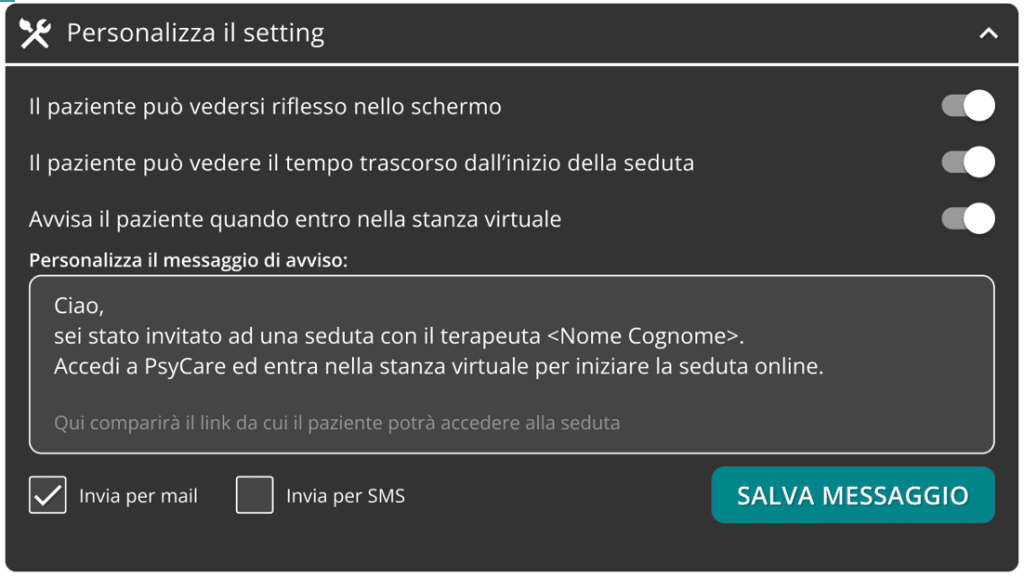
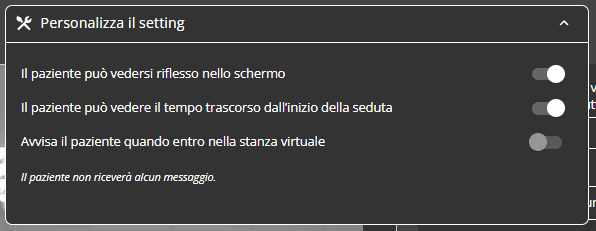
You can independently "enable"/"disable" the options you see.
The patient can see himself reflected in the screen
The patient can see the time elapsed since the beginning of the session.
Notify the patient when I enter the virtual room
Customize the alert message:
Choose how to notify the patient SAVE THE MESSAGE you want to send him
click on
You can proceed and access your virtual room by clicking ENTER
General Features
When you enter your virtual waiting room, you can, depending on your needs:
and choose from the alternatives available on your device; and choose from the alternatives available on your device; section and check the quality of your connection.
Enter the virtual room
Select ENTER the waiting room to enter your VIRTUAL ROOM.
click on << to access the side menu and change some settings;
Click "ACCEPT" to "welcome" the patient into the room and you will be in immediate contact online!
Starting an online session from the patient's profile
Select the item PATIENTS from the side menu visible on the left side: you will see the page with the list of patients.
click on
To start the online session with the patient who is in the waiting room, simply click on "ENTER" to access the waiting room: here you can always Check your connection and you'll always have the session link available.
To start the online session with the patient who is in the waiting room, simply click on "ENTER" to access the waiting room: here you can always Check your connection and you'll always have the session link available.
Customizing the settings
The customization setting feature is active for each of your patients:
click on
You can independently "enable"/"disable" the options you see.
The patient can see himself reflected in the screen
The patient can see the time elapsed since the beginning of the session.
Notify the patient when I enter the virtual room
Customize the alert message:
Choose how to notify the patient SAVE THE MESSAGE you want to send him
click on
You can proceed and access your virtual room by clicking ENTER
General Features
When you enter your virtual waiting room, you can, depending on your needs:
and choose from the alternatives available on your device; and choose from the alternatives available on your device; section and check the quality of your connection.
Enter the virtual room
Select ENTER the waiting room to enter your VIRTUAL ROOM.
click on << to access the side menu and change some settings;
Click "ACCEPT" to "welcome" the patient into the room and you will be in immediate contact online!
Start an online session from the main menu
Select the itemONLINE SESSIONS from the side menu visible on the top left and view the page.
At the top left of the page, click on
Select the patient from the list or search for him.
Remember: You can only select one patient per session.
Click START and go directly to your VIRTUAL WAITING ROOM
To start the online session with the patient who is in the waiting room, simply click on "ENTER" to access the waiting room: here you can always Check your connection and you'll always have the session link available.
Customizing the settings
The customization setting feature is active for each of your patients:
click on
You can independently "enable"/"disable" the options you see.
The patient can see himself reflected in the screen
The patient can see the time elapsed since the beginning of the session.
Notify the patient when I enter the virtual room
Customize the alert message:
Choose how to notify the patient SAVE THE MESSAGE you want to send him
click on
You can proceed and access your virtual room by clicking ENTER
General Features
When you enter your virtual waiting room, you can, depending on your needs:
and choose from the alternatives available on your device; and choose from the alternatives available on your device; section and check the quality of your connection.
Enter the virtual room
Select ENTER the waiting room to enter your VIRTUAL ROOM.
click on << to access the side menu and change some settings;
Click "ACCEPT" to "welcome" the patient into the room and you will be in immediate contact online!
Start an online session from Home
SelectSTART THE SESSION and view the page.
At the top left of the page, click on
Select the patient from the list or search for him.
Remember: You can only select one patient per session.
Click START and go directly to your VIRTUAL WAITING ROOM
To start the online session with the patient who is in the waiting room, simply click on "ENTER" to access the waiting room: here you can always Check your connection and you'll always have the session link available.
To start the online session with the patient who is in the waiting room, simply click on "ENTER" to access the waiting room: here you can always Check your connection and you'll always have the session link available.
Customizing the settings
The customization setting feature is active for each of your patients:
click on
You can independently "enable"/"disable" the options you see.
The patient can see himself reflected in the screen
The patient can see the time elapsed since the beginning of the session.
Notify the patient when I enter the virtual room
Customize the alert message:
Choose how to notify the patient SAVE THE MESSAGE you want to send him
click on
You can proceed and access your virtual room by clicking ENTER
General Features
When you enter your virtual waiting room, you can, depending on your needs:
and choose from the alternatives available on your device; and choose from the alternatives available on your device; section and check the quality of your connection.
Enter the virtual room
Select ENTER the waiting room to enter your VIRTUAL ROOM.
click on << to access the side menu and change some settings;
Click "ACCEPT" to "welcome" the patient into the room and you will be in immediate contact online!
Starting an online session from the online session list
In this section you can see the list of online sessions:
If a patient is in the room, you will see the START button in the respective line:
To start a session with one of the patients on the list:
Find the patient in the list of Sessions performed or search for him/her.
On the respective row of the patient you are looking for, click on
To start the online session with the patient who is in the waiting room, simply click on "ENTER" to access the waiting room: here you can always Check your connection and you'll always have the session link available.
Customizing the settings
The customization setting feature is active for each of your patients:
click on
You can independently "enable"/"disable" the options you see.
The patient can see himself reflected in the screen
The patient can see the time elapsed since the beginning of the session.
Notify the patient when I enter the virtual room
Customize the alert message:
Choose how to notify the patient SAVE THE MESSAGE you want to send him
click on
You can proceed and access your virtual room by clicking ENTER
General Features
When you enter your virtual waiting room, you can, depending on your needs:
and choose from the alternatives available on your device; and choose from the alternatives available on your device; section and check the quality of your connection.
Enter the virtual room
Select ENTER the waiting room to enter your VIRTUAL ROOM.
click on << to access the side menu and change some settings;
Click "ACCEPT" to "welcome" the patient into the room and you will be in immediate contact online!

and view the section
"/ "
"